Migrate off legacy dbt versions
Legacy dbt versions v1.3–v1.7 are being deprecated on January 31, 2027. To keep your work running and supported, move your environments and jobs to a dbt v1 release track now. A release track keeps you on a supported version automatically and prepares your project for dbt v2 later.
Move to a dbt v1 release track now; move to dbt v2 later. Migrating first to a supported release track lowers your migration risk and gets you on a supported version faster.
Your project code, connections, and history stay accessible throughout.
Identify projects using legacy versions
What you migrate is driven by a job's effective version: the version pinned on the job if one is set, otherwise the version its environment inherits.
- Navigate to Orchestration > Environments and note any environment whose dbt version is v1.3–v1.7. The current version is displayed below the environment name.
- Open the jobs in your supported environments and check for any job with a version override pinned to v1.3–v1.7.
Find the row that matches each environment, then follow the linked steps.
| Environment version | Job version | What you do |
|---|---|---|
| Legacy (v1.3–v1.7) | Inherits from environment, or pinned to a legacy version | Migrate the environment to a release track |
| Legacy (v1.3–v1.7) | At least one job pinned to a supported version | Migrate the environment to a release track; the supported jobs are retained |
| Supported | One or more jobs pinned to a legacy version | Update the job's version; the environment is untouched |
| Legacy and dormant (unused 12+ months) | — | Delete the environment, or migrate it if you still need it |
If you don't migrate a legacy environment or clear a legacy job, it's cleaned up when legacy versions are retired: a legacy environment (and its jobs) is deleted, a legacy environment that already has a job on a supported version is updated with only the legacy jobs removed, and a supported environment with legacy-pinned jobs keeps the environment and loses only those jobs.
Delete a dormant environment
Before you migrate a project off a deprecated version, consider whether it's needed at all. If a legacy environment has been dormant for a year or more, you probably no longer need it, so delete it.
Deleting an environment automatically deletes its associated job(s). If you want to keep those jobs, move them to a different environment first.
Follow these steps to delete an environment in dbt:
- Navigate to Orchestration > Environments.
- Select the environment you want to delete.
- Click Settings on the top right of the page and then click Edit.
- Scroll to the bottom of the page and click Delete to delete the environment.
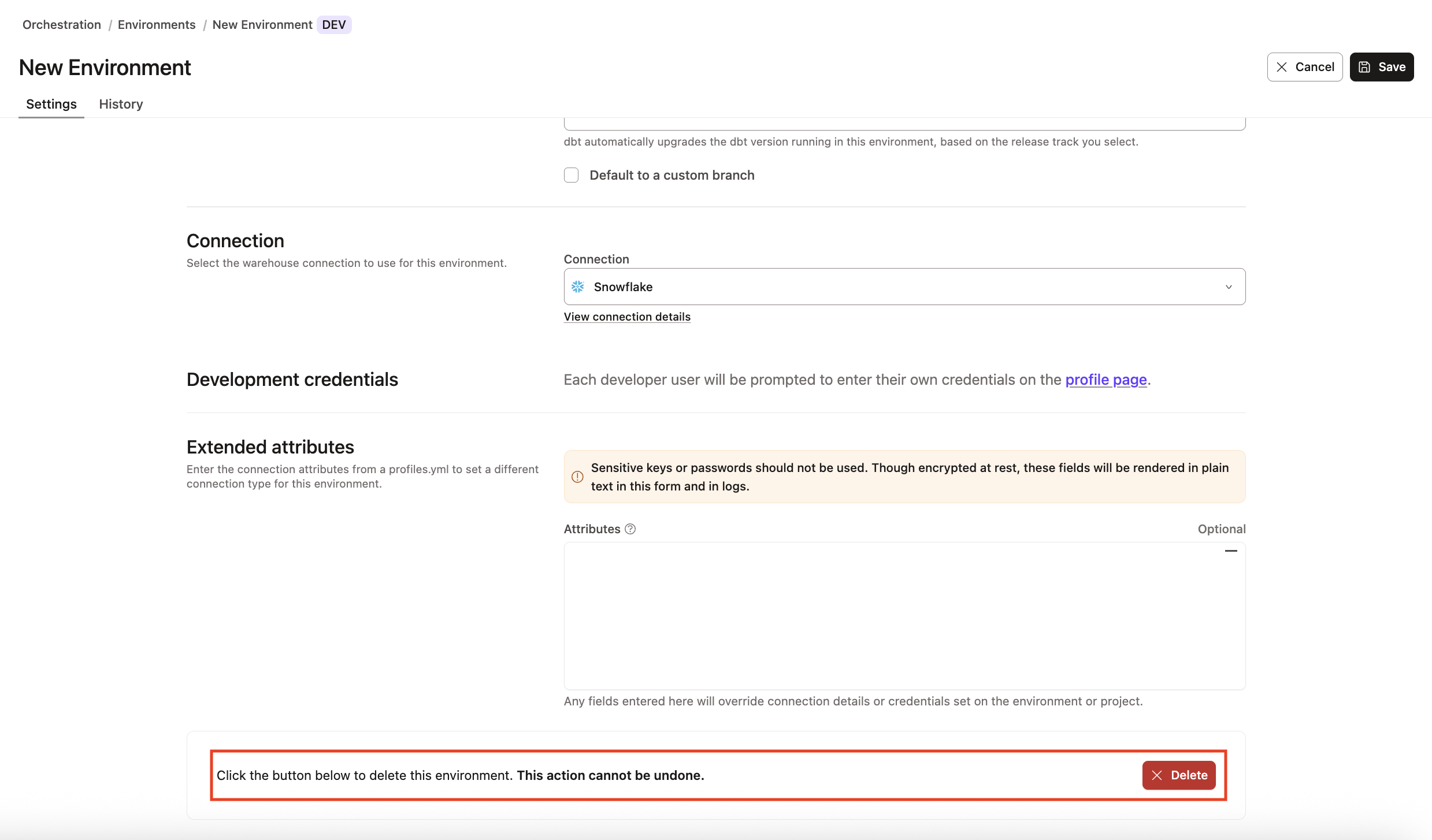 Delete an environment
- Confirm your action in the pop-up by clicking Confirm delete in the bottom right to delete the environment immediately. This action cannot be undone. However, you can create a new environment with the same information if the deletion was made in error.
- Refresh your page and the deleted environment should now be gone. To delete multiple environments, you'll need to perform these steps to delete each one.
If you're having any issues, feel free to contact us for additional help.
Migrate an environment to a release track
Start with a development or test environment. Moving it to a release track first lets you find and fix any compatibility issues in your project before you touch your other environments.
- Navigate to the Settings page of the environment, then click Edit.
- Click the dbt version dropdown and select a release track (v1 Latest is recommended).
- Save your changes.
You can also set the version through the Admin API or Terraform. Refer to Upgrade versions in dbt platform for the full walkthrough.
Once the environment is on the new version, fix any compatibility issues it surfaces before you migrate the rest of your environments and jobs.
Fix compatibility issues in your project
Moving to a release track can surface deprecation warnings that weren't visible on your legacy version. Resolve these in your project code before you migrate your remaining environments, either by hand or with autofix.
Autofix (recommended)
Autofix runs the dbt-autofix script to resolve many deprecation warnings for you. It's available from both the Studio IDE and the VS Code extension.
Studio IDE
- Open the environment in the Studio IDE.
- Select Check & fix deprecations from the IDE's three-dot menu to find and resolve deprecation warnings.
- Click Commit and sync to commit the changes to your project repository.
dbt VS Code extension
- In the dbt VS Code extension, run
dbt parseagainst the updated environment to surface any deprecation warnings. The Problems tab will also surface useful information. - Resolve them with the dbt-autofix tool, either from the command line or by following the prompts in the extension's upgrade assistant.
- We recommend upgrading from a deprecated version to v1 Latest first, but if you intend on moving this project to dbt v2, use the extension's agentic migration flow instead, which runs autofix as part of the full v1-to-v2 upgrade.
Manually fix
- Run
dbt parse --no-partial-parse --show-all-deprecationsto list the deprecations in your project, or view them from the Dashboard in your dbt platform account. - Look up each warning in Deprecations and update your project code accordingly.
- Rerun
dbt parseto confirm the warnings are resolved, then commit your changes.
Update a job's version
To clear or change an override for a job on a supported environment that's pinned to a legacy version:
- Open the job's settings and find the dbt version setting.
- Either clear the override so the job inherits the environment's version, or set it to a release track.
- Save your changes.
Validate your migration
Moving from a pinned legacy version to a release track can surface behavior changes, dependency issues, or adapter differences that weren't visible before. To reduce risk:
- Test in a development environment before upgrading your production and default development environments.
- Review your compile, build, and job run results after the change.
- Establish a fallback path in case you need to roll back.
Get help
If you hit a blocker you can't resolve, contact Support with your project ID, environment ID, affected job run IDs and logs, your current version, and your target release track.
Was this page helpful?
This site is protected by reCAPTCHA and the Google Privacy Policy and Terms of Service apply.